


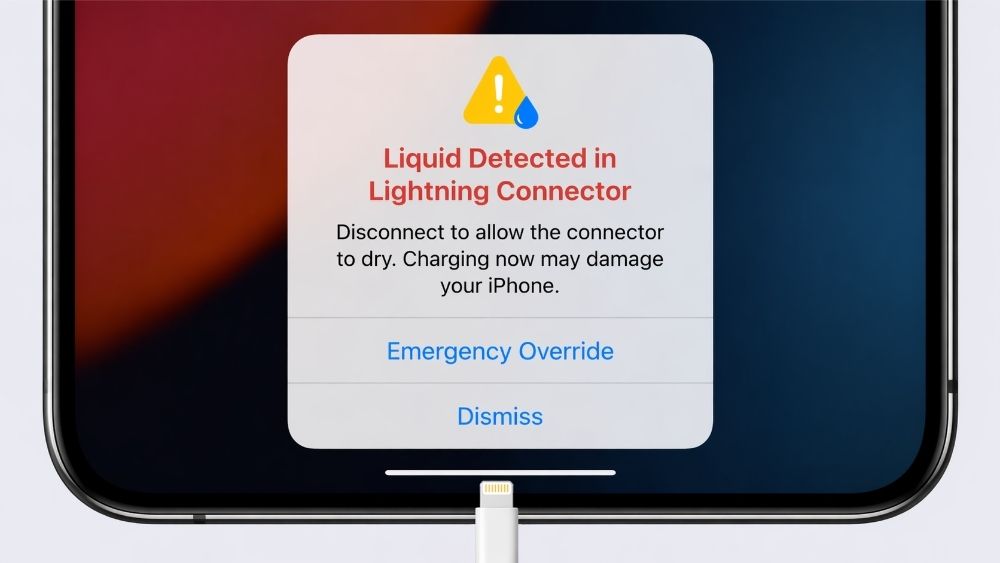


Your iPhone just flashed a "Liquid Detected in Lightning Connector" warning and now refuses to charge. Before you panic — this is a built-in safety feature, not a sign your phone is broken. In most cases, the fix takes less than an hour and costs nothing. Here is exactly what to do.
What Does "Liquid Detected" Actually Mean?
iPhones with Lightning connectors (iPhone 5 through iPhone 15) have moisture sensors built into the port. When the system detects water, condensation, or even high humidity inside the connector, it blocks wired charging automatically to prevent a short circuit.
The warning appears in two forms. The first is a temporary alert that clears once the port dries out — this is the most common scenario after a splash, rain, or sweaty pocket. The second is a persistent warning that keeps appearing even after the phone seems dry, which usually means there is still residual moisture deeper in the connector, or in rare cases, the sensor itself has been triggered incorrectly.
It is worth noting that this warning applies specifically to Lightning ports. iPhone 15 and later use USB-C, which handles moisture differently — but the same principle of letting the port dry before charging applies.
How to Fix the Liquid Detected Warning?
Unplug Everything and Shake It Out
The first thing to do is disconnect any cable or accessory immediately. Then hold the iPhone with the Lightning port facing down and tap it gently against your palm a few times. This dislodges any water sitting at the bottom of the connector before it can work its way deeper into the device.
Do not blow into the port with your mouth — warm, humid breath adds moisture rather than removing it. Do not use a hair dryer either. Direct heat can damage the port pins and warp the connector housing.
Leave It to Dry in Open Air
Set the iPhone down in a dry, well-ventilated spot with the Lightning port facing down or sideways — not face up, which traps moisture inside. Room temperature is fine. A spot near a window with airflow is ideal.
Avoid the instinct to speed things up with rice. Rice does not absorb moisture from inside a sealed port effectively, and small grains can get lodged in the connector, making things worse.
Check for Visible Debris or Damage
Once the phone has had time to dry, shine a light into the port. If you see lint, debris, or visible corrosion (a green or white residue on the pins), that may be contributing to the persistent warning. Lint can be cleared gently with a toothpick. Corrosion, however, is a sign of deeper damage and requires a professional assessment.

How Long Should You Wait Before Charging Again?
Apple recommends waiting at least 30 minutes after the liquid detected alert before attempting to charge again. In practice, if the exposure was minor — a light splash or brief rain — 30 to 60 minutes of open-air drying is usually sufficient.
For heavier exposure, such as dropping the phone in water or getting caught in heavy rain, give it a minimum of a few hours. If the port was fully submerged, waiting overnight is the safer call. Charging too soon is the most common reason the warning keeps reappearing — the port looks dry on the surface but still has moisture further inside.
What If the Warning Won't Go Away?
If the alert persists after several hours of drying, there are a few possible explanations.
The sensor may have been triggered by humidity rather than actual water — this sometimes happens in very humid climates or after moving between air-conditioned and outdoor environments. In this case, leaving the phone in a dry indoor environment for a few more hours usually clears it.
If the warning has been showing for more than 24 hours with no improvement, and the phone has not been near water recently, the sensor itself may be faulty. This is less common but does happen, particularly on older devices. At that point, an Apple Store or authorised service provider can run a diagnostic to confirm whether the hardware needs attention.
A persistent warning can also appear on iPhones that have a history of iPhone charging port problems — prior damage to the connector can make the sensor more sensitive or cause false positives.
How to Charge Your iPhone While It Dries?
This is where things get practical. You need to wait for the port to dry — but you still need your phone. The answer is wireless charging.
iPhone 8 and later all support Qi wireless charging, which bypasses the Lightning port entirely. A wireless charger on your desk means you can keep the phone topped up throughout the drying period without risking further damage by forcing a wired connection.
For iPhone 12 and later, MagSafe is the faster option — up to 20W versus 7.5W for standard Qi — and the magnetic alignment means you do not have to fuss with positioning. If you are frequently in situations where the port gets exposed to moisture, a portable charger with wireless output is worth having as a permanent backup solution, not just for emergencies.
One thing to avoid: the "Emergency Override" option that sometimes appears alongside the liquid detected warning. This lets you force a wired charge despite the alert, and while it works, repeatedly overriding the warning while moisture is present significantly increases the risk of permanent port damage.

How to Prevent This From Happening Again?
The Lightning port is one of the most exposed parts of an iPhone. A few habits can significantly reduce how often you see this warning.
-
Use a case with port protection. Many iPhone cases include a small flap or cover over the Lightning port. This is especially useful in the rain, at the beach, or during workouts where sweat is a factor.
-
Dry your hands before plugging in. Most Lightning port moisture comes not from rain or submersion but from damp hands transferring water directly into the port during charging. It takes two seconds and prevents a lot of frustration.
-
Switch to wireless charging as your default. The less you use the Lightning port for daily charging, the longer it lasts and the less often moisture becomes an issue. RORRY builds wireless and MagSafe charging accessories designed to make this switch effortless — keeping the port free for when you actually need it.
Conclusion
The liquid detected warning is your iPhone doing its job. The fix in most cases is simple: unplug, shake out the excess moisture, and leave the port to dry for at least 30 minutes to a few hours depending on the exposure. Use wireless charging in the meantime, and resist the temptation to override the warning before the port is fully dry.
If the warning persists beyond 24 hours without any obvious cause, a professional diagnosis is the next step.
FAQs
1. Can I use Emergency Override to charge through the warning?
You can — but you should not make a habit of it. Forcing a wired charge while moisture is present risks a short circuit and can cause permanent damage to the port or internal components. Use wireless charging instead and wait for the port to dry fully.
2. Does the liquid detected warning mean my iPhone is water-damaged?
Not necessarily. The warning triggers from any moisture, including condensation and humidity — not just submersion. In most cases, it clears on its own after drying. Actual water damage typically shows additional symptoms like speaker distortion, screen discolouration, or persistent sensor faults.
3. Will Apple replace my iPhone if it has water damage?
Standard AppleCare does not cover water damage. AppleCare+ does include coverage for accidental damage, including liquid damage, with a service fee. Without coverage, repair costs vary by model — check Apple's support site for current pricing.
4. How do I know when it is safe to charge again?
The warning will disappear from the lock screen and charging will resume normally once the port is dry. If you dismissed the warning manually, wait at least an hour after light exposure, or several hours after heavier contact with water, before plugging in.
Share:
iPhone Charging Port Not Working? Here's How to Fix It
Which Samsung Phones Have Wireless Charging in 2026?