


- von EditorialTeam
iPhone 17 Will Not Turn On After Battery Dies?
- von EditorialTeam
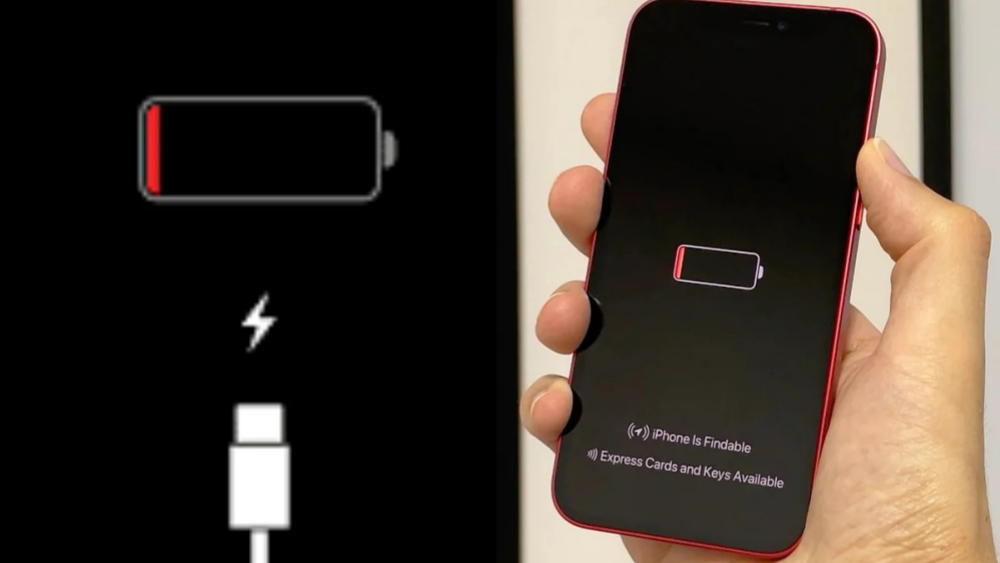
If an iPhone 17 stays black after its battery reaches zero, connect it to a proven wall charger and leave it undisturbed before trying a force restart. Some owners have also revived affected phones with MagSafe or Qi2 charging, but Apple has not confirmed one cause or an official model-specific fix.
When the battery is deeply depleted, the phone first needs enough stored energy to run its power-management system, display, and startup process. During that period, the screen may stay completely black even though the battery is beginning to accept power. A black screen during the first few minutes therefore does not prove that the battery, display, or logic board has failed.
Reports published in 2026 describe an intermittent problem affecting some iPhone 17, iPhone 17 Pro, iPhone 17 Pro Max, and iPhone Air devices after a full discharge. In several cases, USB-C charging showed no battery icon, while MagSafe charging eventually brought the phone back. Other users recovered after leaving the phone on a wired wall charger for much longer.

Do not assume the phone is permanently dead. A fully depleted battery may need time before the display, charging icon, or Apple logo appears. Work through these steps in order and change only one part of the charging setup at a time.
A dependable wireless power bank can provide the alternative charging path when this happens away from a wall outlet. Use a Qi2-certified model with clear compatibility and safety information rather than an unverified magnetic battery.
A force restart does not erase your photos, apps, or settings. It simply interrupts a frozen startup state. Give the phone some charging time first; a force restart cannot start hardware that still has too little power.
The first two presses must be quick and separate. If you hold both volume buttons or release the Side button too early, the sequence may fail. When nothing happens, reconnect the charger, wait longer, and try the sequence once more rather than repeating it continuously.
If you regularly carry backup charging equipment, RORRY portable chargers include both wired and magnetic formats. For this particular fault, having two charging methods is more useful than choosing a battery only by its maximum wattage.

Inspect the cable and adapter for bent contacts, cuts, discoloration, looseness, or heat damage. Connect the iPhone directly to a wall adapter rather than through a hub, dock, laptop, or multi-device accessory. A higher-wattage USB-C PD adapter is safe because the phone controls how much power it accepts, but a 65W label does not guarantee that a deeply discharged phone will recover faster.
Use a flashlight to check for compacted lint or visible damage. The connector should sit firmly rather than wobble or fall out. Do not push metal objects, liquids, or cleaning products into the port. If debris is tightly packed or the contacts look damaged, professional cleaning is safer than probing the connector.
An iPhone may pause charging when it is too hot or too cold. Move it to a dry room-temperature location, remove a heat-trapping case, and allow it to return to a normal temperature before trying again. If the phone or connector may be wet, disconnect it and let it dry; do not use heat, compressed air, or rice.
If the wireless charger itself appears unreliable, follow the controlled power, case, alignment, and cross-testing steps in the MagSafe charger troubleshooting guide before replacing either the charger or the phone.

It has worked in multiple published owner reports. Place the bare iPhone on a powered MagSafe or Qi2 charger, confirm that it is centered, and leave it undisturbed for 15 to 30 minutes. Do not place a wallet, metal ring, card, or thick non-MagSafe case between the phone and charger.
This is a user-reported workaround, not an Apple-confirmed repair. Wireless charging does not guarantee recovery, and the absence of an immediate animation does not tell you whether power is entering the battery. If a second known-working wireless charger also fails, return to Apple's one-hour charging guidance and prepare to seek service.
If you need an alternative charging source, the RORRY AuraDock M1 4-in-1 Charging Station offers magnetic wireless charging and a detachable power bank you can take with you. The dock also charges an Apple Watch and compatible AirPods, making it useful beyond this troubleshooting step. If you already have a working wireless charger, try that first.
Arrange Apple or authorized service when the iPhone remains black after one hour on a verified wired charger, a correct force restart, and a test with another charging method. Service is also the right next step when a Mac detects the phone but the display stays black, or when the phone repeatedly fails after every complete discharge.
Until Apple confirms the cause of the reported iPhone 17 behavior, avoiding repeated full discharges is sensible. Recharge when convenient instead of deliberately running the battery to zero for calibration; modern iPhone batteries do not require routine zero-to-full cycles.
Often, yes. A black screen can result from deep battery depletion, a frozen startup, a failed charger, or a display problem. Charging and a force restart solve the first two; persistent cases need hardware diagnosis.
You cannot create a new normal backup while the iPhone is completely off and unavailable to iCloud, Finder, or Apple Devices. Check iCloud from another signed-in device for an earlier automatic backup, and avoid an erase or restore until you understand the data risk.
Start with a force restart, which does not erase data. Recovery mode and a computer-based restore are later options, but a restore erases the iPhone and should not be the first response to a battery or charging problem.
There is no official three-finger startup method for reviving a dead iPhone. Three-finger gestures are used for features such as editing or accessibility. The supported iPhone 17 force restart uses Volume Up, Volume Down, then the Side button.
Yes, if the problem is deep discharge or a frozen startup. A phone with a failed battery, damaged charging circuit, broken display, or liquid damage may require repair even when charging and force-restart steps are correct.
When an iPhone 17 stays black after its battery dies, begin with a verified wall charger, wait without interruption, and then use the correct force-restart sequence. Check the cable, adapter, USB-C port, temperature, and moisture before assuming the phone is damaged. MagSafe or Qi2 charging has revived some reported cases and is a reasonable alternative to try, but it is not a guaranteed repair. If the phone remains unresponsive after one hour and a second charging setup, arrange professional service.

Share:
iPhone Duo Accessories Guide: What Works With MagSafe?