


- von EditorialTeam
USB 2.0 vs USB 3.0: Speed, Charging, and Best Uses
- von EditorialTeam
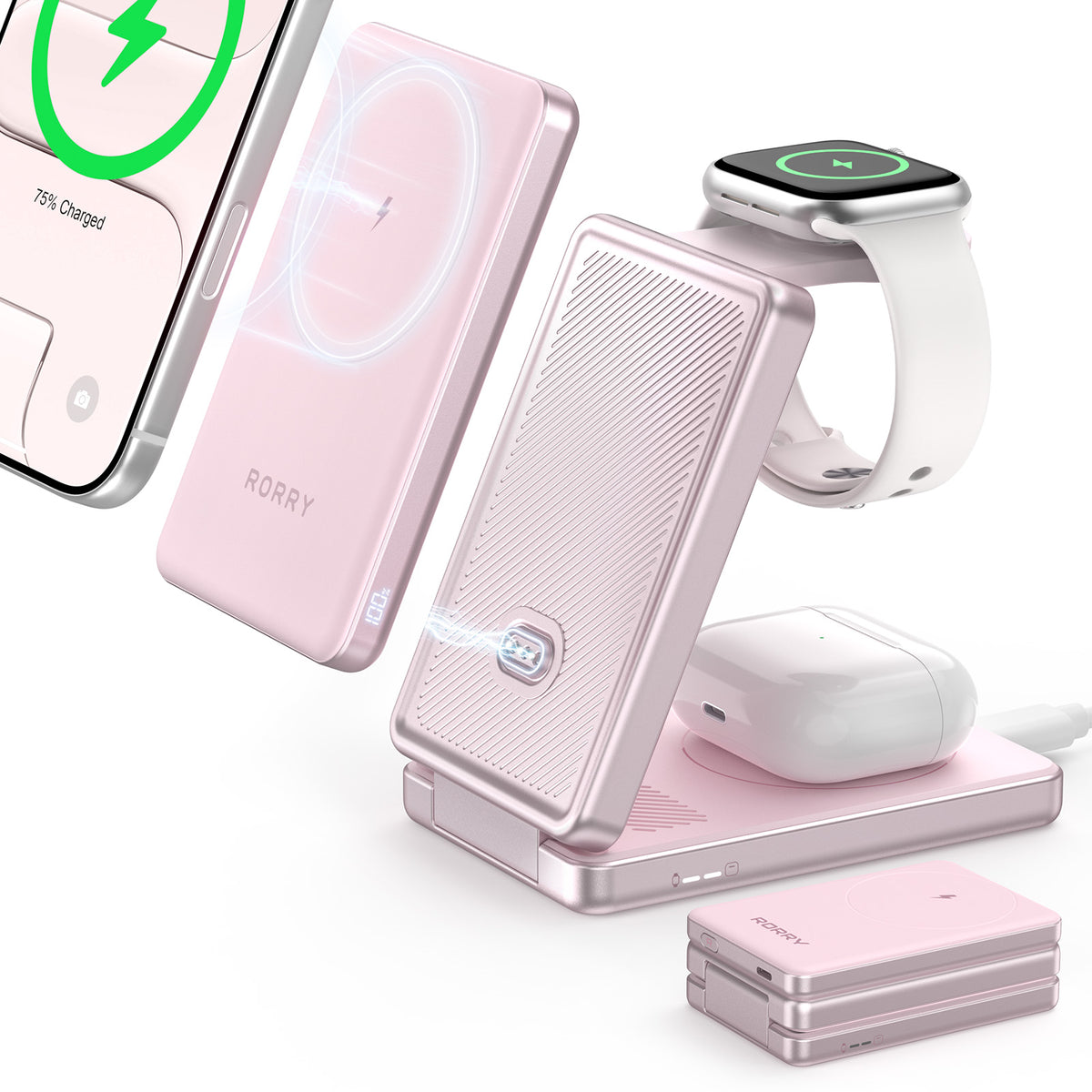
Choose USB 3.0 for external drives, large files and other bandwidth-heavy devices. USB 2.0 remains sufficient for keyboards, mice, printers and simple accessories. For phone charging, however, USB Power Delivery, wattage, the cable and the device matter more than the USB generation. This guide explains the differences and gives you a clear choice for each use case.
USB 2.0 is a connection standard introduced in 2000. It supports a theoretical maximum data rate of 480 megabits per second and is commonly labelled Hi-Speed USB. Many low-bandwidth peripherals do not need anything faster.
USB 3.0 arrived in 2008 with a theoretical maximum of 5 gigabits per second—more than ten times the headline speed of USB 2.0. The naming has changed over time: the original USB 3.0 specification is now called USB 3.2 Gen 1, while consumer-facing certification uses USB 5Gbps. These names refer to the same 5Gbps performance tier.
Do not confuse that 5Gbps tier with later versions. USB 3.1 Gen 2, now called USB 3.2 Gen 2, supports 10Gbps; USB 3.2 Gen 2x2 supports 20Gbps. They belong to the broader USB 3.x family but are faster than the original USB 3.0 discussed here.
A USB version describes data capability, not the plug. Both standards can use USB-A, while USB-C products may support anything from USB 2.0 to much faster modes. USB-C therefore does not automatically mean USB 3.0.

|
Feature |
USB 2.0 |
USB 3.0 |
|
Maximum data rate |
480 Mbps |
5 Gbps |
|
Current consumer name |
USB 2.0 / Hi-Speed USB |
USB 5Gbps (originally USB 3.0) |
|
Standard port power |
5V at 500mA (2.5W) |
5V at 900mA (4.5W) |
|
Type-A contacts |
4 |
9 |
|
Data direction |
Half-duplex |
Full-duplex |
|
Cable requirement |
USB 2.0-rated cable |
USB 3.0/5Gbps-rated cable for full speed |
|
Backward compatibility |
Works in USB 3.x ports at USB 2.0 speed |
Works in USB 2.0 ports at USB 2.0 speed |
|
Best suited to |
Keyboards, mice, printers and basic accessories |
External drives, large files, high-resolution webcams and capture devices |
The practical differences extend beyond headline transfer speed. USB 3.0 changes how data moves, how much standard power a port can provide, the contacts inside a Type-A connector and the cable required for full performance.
USB 2.0 supports 480 Mbps and commonly transfers files at roughly 30–40 MB/s. USB 3.0 supports 5 Gbps and a fast drive may reach around 400–500 MB/s. A 10GB file can therefore take roughly five minutes over USB 2.0 but about half a minute over USB 3.0, depending on the drive and computer.
USB 2.0 is half-duplex: it sends or receives data in one direction at a time. USB 3.0 uses separate transmit and receive paths, allowing full-duplex communication. This helps devices that continuously send and receive data, although storage speed still determines the final result.
The standard baseline is 2.5W for USB 2.0 and 4.5W for USB 3.0. A BC 1.2 charging port can reach 7.5W even with USB 2.0 data, while USB PD and PPS can provide much more. USB 3.0 may offer more baseline power, but it does not automatically mean modern fast charging.
For users who want USB 3.0 support in a portable charging device, the RORRY H1 10000mAh Power Bank combines USB 3.0 connectivity with up to 30W USB-C output. It also includes two 25.6-inch retractable cables, a dedicated Apple Watch charger and enough outputs to charge as many as five devices, reducing the number of separate cables and chargers needed each day.
When comparing a USB-C power bank, check its wattage and supported fast-charging protocol rather than assuming every USB-C connector has the same speed.
USB 2.0 Type-A has four contacts. USB 3.0 Type-A adds five contacts deeper inside the plug, bringing the total to nine. USB 3.0 ports are often blue or marked SS, but colour is optional and cannot confirm the version by itself.
A USB 2.0 cable can fit a backward-compatible USB 3.0 connection but limits data to USB 2.0 speed. Full 5Gbps performance requires a USB 3.0/USB 5Gbps-rated cable. USB-C only describes the connector, so its data rate and charging rating must be checked separately.
For heavier use, the RORRY T2 20000mAh Power Bank pairs USB 3.0 support with 45W bidirectional USB-C charging. Its 20000mAh battery, built-in 9.45-inch braided USB-C cable, smart colour display and three-device charging make it better suited to longer trips, tablets and other higher-power equipment.

USB 2.0 and USB 3.0 Type-A devices and ports normally work together. A USB 3.0 drive connected to a USB 2.0 port runs at USB 2.0 speed. Connector shape must still match, and a slower cable, hub, port or device limits the whole connection.
USB 2.0 is sufficient for keyboards, mice, basic printers, barcode scanners and small files. USB 3.0 is the better choice for external drives, backups, large photo or video transfers, high-resolution webcams and capture devices.

Use markings and specifications rather than relying on colour alone:
A USB-C port or cable may support USB 2.0, USB 5Gbps or a faster mode. Product documentation remains the most reliable way to identify it.
Choose USB 2.0 for low-bandwidth accessories and occasional small files. Choose USB 3.0 for storage, backups, large media files, cameras and other devices that can use the extra bandwidth. When buying a new flash drive, hub or storage cable, USB 3.0 is generally the more useful long-term choice.
For charging, make a separate choice based on wattage and protocol. The guide on how many watts to charge a phone explains how to match the power source, cable and device input.
No. USB 2.0 is old but still useful for keyboards, mice, printers and other low-bandwidth devices. It is a poor choice for new external storage or large transfers, but it remains widely supported in modern USB systems.
Yes. USB4 is an established USB-C-based standard, and USB4 Version 2.0 supports certified data rates up to 80Gbps. Actual speed still depends on the computer, device and cable, so a USB-C connector alone does not confirm USB4 performance.
Yes, when you want USB 3.0 speed. The cable needs the additional SuperSpeed connections and a 5Gbps or higher rating. A USB 2.0 cable may fit a compatible port but limits the connection to USB 2.0 performance.
Not necessarily. USB 3.0 has a higher standard power baseline, but BC 1.2, USB Power Delivery and other charging protocols can change the result. The charger, cable and receiving device ultimately determine the supported charging power.
Choose USB 3.0 for frequent transfers, backups, photos and video. USB 2.0 is adequate for a few small documents or occasional use. For USB 3.0 speed, the flash drive, computer port and connection must all support it.
USB 3.0 is the better choice for external storage, frequent backups, large media files and bandwidth-heavy equipment. USB 2.0 remains practical for keyboards, mice, printers and other simple peripherals. Both can work together, but the slowest component sets the speed. For charging, ignore the data-generation label and compare USB PD or PPS support, wattage, cable capability and the device’s input limit.

Share:
Why Is My Phone Charging Slow Find the Cause Fast
Do iPhones Have Lithium Batteries? Type, Life and Care