


- scritto da Fuzley
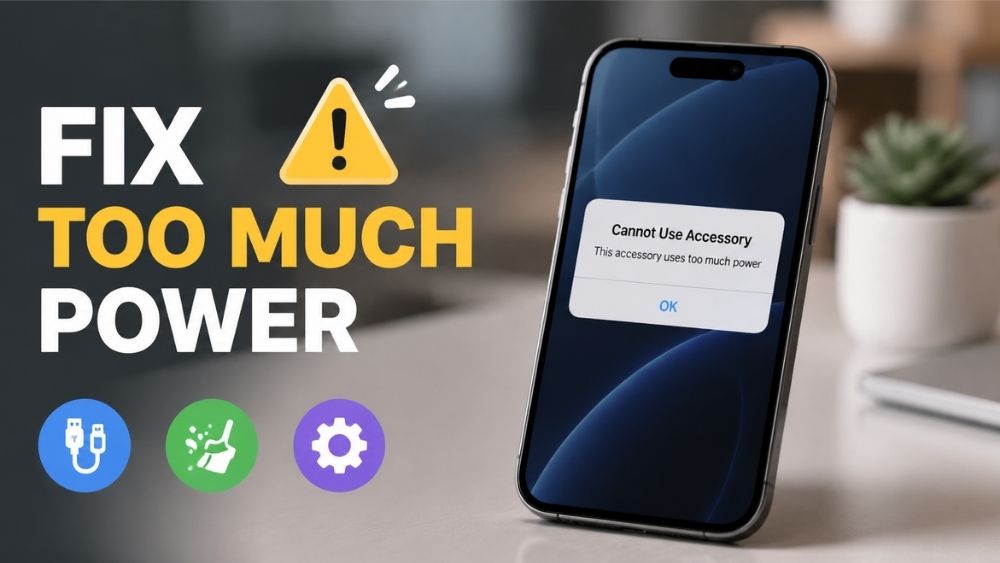
How to Fix "This Accessory Uses Too Much Power"?
- scritto da Fuzley
This warning means iOS has blocked a connected accessory to protect your device — not a sign that something is broken. It can appear with chargers, USB hubs, external drives, or adapters, and the cause is usually simpler than it looks. Most fixes take under a minute.
Your iPhone and iPad have a built-in limit on how much electrical current they can safely deliver to connected accessories. When a plugged-in device tries to draw more than that limit, iOS steps in immediately — cutting the connection and displaying this warning. It's a protective measure, not a malfunction.
The alert can appear with almost anything you plug in: a USB hub, external SSD, microphone, camera adapter, or portable charger. On iPhone 15 and later, this error shows up more frequently because USB-C accessories tend to operate at higher power levels, making mismatches more likely.
You might also see it phrased as "The attached accessory uses too much power" or "Cannot use accessory — this accessory uses too much power." All three mean the same thing: your device and the accessory can't agree on how much power to exchange.
Several factors can trigger the warning, and most of them don't point to a broken accessory.
Power-hungry peripherals. External hard drives, audio interfaces, and camera adapters often demand more current than an iPhone port can supply on its own — especially without a dedicated external power source.
Non-certified cables and adapters. Accessories that aren't MFi-certified may not communicate power requirements correctly with iOS. A cable that looks perfectly fine can still confuse your iPhone's power management system — which is why pairing your device with a quality portable charger and certified cables makes a noticeable difference.

Low device battery. When your iPhone drops below about 20%, iOS automatically reduces power output to conserve energy. An accessory that worked fine at full charge may trigger this error on a nearly-dead phone.
Dirt or debris in the charging port. Even a thin layer of lint inside a Lightning or USB-C port can disrupt the electrical contact, causing your device to misread how much power is being drawn. This is more common than most people expect, and it's one of the easiest causes to overlook.
iOS software bugs. A firmware update occasionally introduces a glitch that causes iOS to misidentify an accessory's power draw. Apple typically patches these in the next release.
Work through these fixes in order. Most users resolve the issue within the first three.
Unplug everything, wait 10 seconds, and reconnect firmly. This resets the power handshake between the accessory and iOS and clears most temporary communication errors. While you're at it, check that the connector seats fully — a loose fit produces inconsistent power readings.
Use a dry, soft-bristled brush or a wooden toothpick to gently remove lint and debris from the port. Avoid metal tools and liquids entirely. A clean port restores proper electrical contact and eliminates false error readings more often than any other single fix.
Replace whatever you're using with an MFi-certified cable. Certified cables communicate voltage and amperage requirements accurately with iOS, which prevents the system from flagging a power mismatch in the first place.
If your battery is below 20%, plug into a power bank for iPhone or a wall charger and let it climb above 50% before reconnecting the accessory. When iOS is conserving power, it doesn't have the headroom to supply external devices at full current — charging first solves this instantly.
A soft restart clears temporary software states that can cause iOS to misread an accessory. On Face ID iPhones: press and hold the side button and a volume button until the power slider appears. Drag it, wait 30 seconds, then power back on.
Go to Settings → General → Software Update. If this error appeared after a recent iOS update, a patch may already be available. Updating resolves a surprisingly large number of accessory compatibility issues that have nothing to do with the hardware.
For high-demand accessories — external SSDs, audio interfaces, card readers — route them through a powered USB hub instead of connecting directly to your iPad. The hub supplies its own power source, taking the load off your device's port entirely.
Connect the same accessory to a different phone, tablet, or computer. If it works there, the issue is on your iPhone's end. If it fails across multiple devices, the accessory's internal circuitry is likely the problem.

Usually not. The vast majority of cases trace back to the accessory, the cable, or port contamination — not the device itself. That said, there's a pattern worth recognizing: if multiple certified accessories that previously worked fine are all now triggering this warning, your iPhone's port or power management chip may need attention. A diagnostic at an Apple Store or authorized repair center will tell you clearly.
A few habits eliminate most causes:
Lint builds up faster than you'd expect, especially in pockets and bags. If repeated cleaning doesn't fix the issue, the port itself may be damaged — an iPhone charging port not working is worth addressing before it gets worse.
The certification exists for exactly this reason: accurate power communication with iOS. Non-certified cables may look identical but lack the chip that tells iOS how much current to allow.
Don't attach external drives or hubs to a phone below 20% — iOS will throttle power output to protect the battery, and the accessory will almost certainly trigger the warning.
Degraded cells deliver unstable voltage that iOS reads as a power fault. A 45W power bank with a regulated output keeps a clean handshake with iOS and won't set off this warning.
The "This accessory uses too much power" alert is your iPhone protecting itself — not a sign that something is permanently wrong. Clean the port, use a certified cable, keep your battery above 20%, and you'll resolve this in most cases without further troubleshooting.
If the culprit is a power bank that's reached the end of its reliable life, Rorry portable chargers are engineered with regulated output and smart protection circuits — so your iPhone gets a clean, stable charge every time without triggering safety warnings.


Share:
Does iPhone 13 (Mini/Pro/Pro Max) Have Wireless Charging?
Why Does My iPhone Say It's Charging But It's Not? 9 methods