


- by kehuiyi
iPhone Charging Port Not Working? Here's How to Fix It
- by kehuiyi
A port that suddenly stops working is rarely a hardware failure. In most cases, it is lint, a software glitch, or a cable issue — all of which you can fix in under five minutes without a trip to the Apple Store. This guide walks through every likely cause and the fixes that actually work, starting with the simplest.
Before assuming the port is damaged, rule out the easier culprits first. The most common cause of an iPhone appearing not to charge has nothing to do with the port itself.
Start with the cable. Try a different USB-C or Lightning cable — preferably an Apple-certified one. Low-quality or worn cables are responsible for more "broken port" complaints than actual port damage. Next, swap the wall adapter and try a different power source entirely, such as a different outlet or a USB port on a computer.
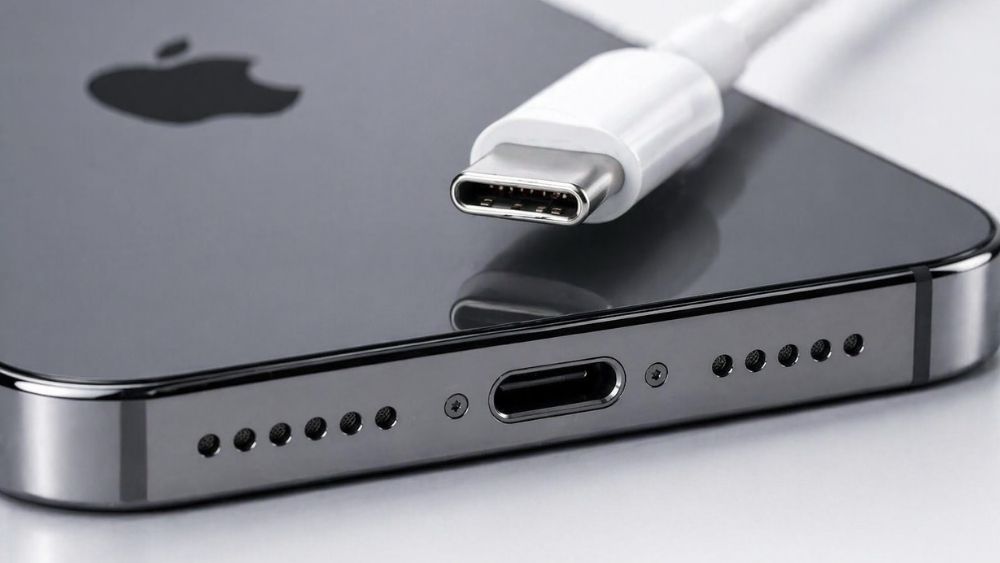
If the phone charges normally with a different cable or adapter, the port is fine. If it still does not charge, check the port with a flashlight. Lint, dust, and pocket debris compact into the bottom of the port over time.
It is also worth checking battery health at this stage. A battery that has degraded significantly can behave unpredictably — refusing to charge, dropping to zero suddenly, or showing incorrect percentages. This is especially common in older models that have been through hundreds of charge cycles.

If the port is genuinely the problem, work through these fixes in order before assuming hardware repair is necessary.
Lint is the number one reason iPhones stop charging — and most people never think to check. Grab a flashlight and shine a light into the port. If you see a compacted grey layer at the bottom, that is the culprit. Gently remove it with a toothpick. Avoid metal tools, which can bend the pins inside the port.
Once cleared, plug the cable back in. If it seats more firmly and clicks in without wobbling, it means it's cleaned up. This alone fixes the problem in the majority of cases.
If your iPhone supports MagSafe or Qi wireless charging (iPhone 8 and later), test it on a wireless pad. If the phone charges wirelessly but not via the port, that confirms the port itself is the problem rather than the battery or software. At that point, a wireless power bank becomes a practical interim solution while you arrange a repair.

A software fault can prevent the charging circuit from activating, even if the port and cable are both fine. Force-restart the iPhone by pressing Volume Up, then Volume Down, then holding the Side button until the Apple logo appears. This clears temporary system states that sometimes interfere with charging detection.
Charging issues occasionally appear after a software update introduces a bug — and Apple typically patches these quickly. Go to Settings > General > Software Update and install any available update. If the issue started after a recent update, this is worth trying before anything else.
If none of the above fixes work and wireless charging confirms the port is at fault, you have two options: repair or replace.
For iPhones still under warranty or covered by AppleCare+, a port repair at an Apple Store or Apple Authorised Service Provider is usually free or low cost. Out of warranty, Apple charges a flat fee depending on the model — check the current pricing on Apple's repair pricing page.
The repair-vs-replace decision depends on the age of the device. If the iPhone is more than four years old and the battery health is already below 80%, a port repair may not be worth the cost. An older device with compounding hardware issues is often better replaced than maintained.
For those who need a reliable backup charging option in the meantime, a compact keychain power bank is worth considering — small enough to carry daily, with enough output to keep an iPhone running while a repair is pending.

If the port is confirmed broken and a repair is not immediately possible, wireless charging is the most practical workaround. iPhone 8 and later support Qi wireless charging, and iPhone 12 and later support MagSafe — both bypass the port entirely and work normally even with a damaged connector.
MagSafe in particular is worth considering as a longer-term interim solution. It snaps magnetically into place, charges at up to 15W, and removes the need to plug anything in at all. If you are not familiar with how it works, what MagSafe is and how it charges is a good place to start before deciding whether it fits your setup.
For day-to-day use while waiting on a repair, a MagSafe power bank covers you away from the desk as well — no port, no cables, just snap and charge.
Most port damage is avoidable. A few consistent habits can extend the life of the port significantly.
Use certified cables. Non-MFi cables often have slightly off-spec connectors that wear down the port pins faster than Apple-certified accessories. The cost difference is small; the lifespan difference is not.
Insert cables straight. Plugging in at an angle puts lateral pressure on the port walls. Over time, this loosens the connector and bends internal pins. Always insert cables with the connector aligned squarely with the port.
Keep the port clean. Make it a monthly habit to check the port with a flashlight and clear any visible lint. A clean port makes a cleaner connection and reduces the risk of debris compressing further with repeated cable insertions.
Avoid charging in dusty or humid environments. Moisture and fine particles are the two most common causes of port corrosion. If your iPhone gets wet, let it dry completely before plugging anything in — Apple recommends waiting at least 30 minutes after liquid exposure before charging.
For iPhone users who want to reduce port wear altogether, switching to a wireless-first charging setup is the most effective long-term solution. RORRY builds a range of MagSafe and wireless charging accessories designed to make cable-free charging the default, not the backup.
In most cases, an iPhone charging port that appears broken is either clogged with lint, suffering from a software glitch, or being let down by a faulty cable. Work through the fixes in order — clean the port, restart, update iOS, and test with a different cable — before assuming the hardware needs replacing.
If a repair is needed, RORRY's range of MagSafe and wireless charging accessories keeps your iPhone powered in the meantime, without needing the port at all.
Yes — iPhone 8 and later support Qi wireless charging, and iPhone 12 and later support MagSafe. Both methods bypass the port entirely and work normally even if the port is damaged.
Apple's repair pricing varies by model and warranty status. Devices under AppleCare+ are typically covered at low or no cost. Out-of-warranty repairs range from around $69 to $299 depending on the model. Check Apple's support site for current pricing.
Using a toothpick or compressed air to remove lint from the port does not void your warranty. Avoid metal tools or liquids, which can cause damage that may not be covered.
Slow charging is usually a cable or adapter issue rather than a port problem. A 20W USB-C Power Delivery adapter is the minimum for fast charging on modern iPhones. Older 5W adapters charge the phone, but very slowly.


Share:
How to Charge Your Phone Faster? 6 Tips That Actually Work
iPhone Liquid Detected in Lightning Connector? The Fix Guide