


- von kehuiyi
How Do I Know if My Mac Is Charging Smoothly?
- von kehuiyi
Your Mac gives you several ways to check — a battery icon in the menu bar, an LED on the charger, the percentage ticking upward, and a brief sound when you plug in. If any of those signals are missing, something is off. This guide covers how to read each indicator, what causes charging to fail, and how to fix it.
The fastest check: look at the top-right corner of your screen. When charging, the battery icon shows a lightning bolt. Click it and the dropdown will say "Charging," "Fully Charged," or "Not Charging." If it says "Not Charging" while the cable is plugged in, that's worth investigating.
On some newer macOS versions the battery icon is hidden by default. To restore it: System Settings → Control Center → Battery → Show in Menu Bar.

If your Mac uses a MagSafe connector (most models before 2016, and MagSafe 3 on newer MacBook Pros), the LED at the connection point tells you the status at a glance.
Amber/Orange — charging in progress
Green — fully charged
No light — no power, or a connection issue
For more detail, go to System Settings → Battery. This shows charging status, percentage, and battery health. If health reads "Service Recommended," the battery has degraded. For a full technical breakdown: Apple Menu → About This Mac → System Report → Power, which shows cycle count and whether the battery is actively receiving charge.

When you plug in your Mac, you'll hear a brief chime — this confirms the connection was recognized. If there's no sound, the Mac either didn't detect the charger or there's a connection problem.
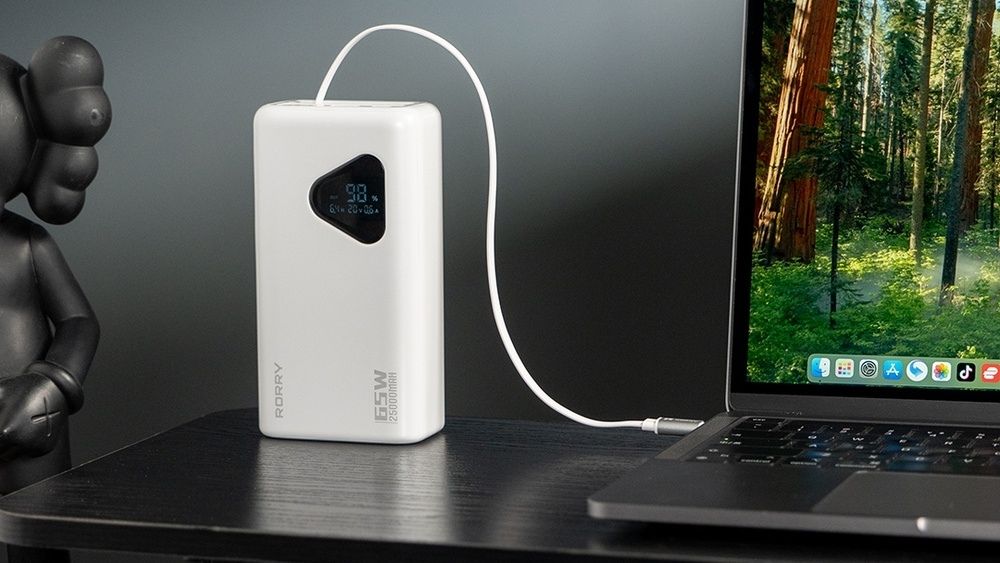
The clearest long-term confirmation is watching the percentage. If it rises steadily while plugged in, charging is working. If it stays flat or drops despite being connected, something is preventing charge from reaching the battery. The charger itself is often the variable — a quality portable charger or wall adapter delivers stable input that keeps the percentage moving consistently.
|
Indicator |
Charging |
Fully Charged |
Not Charging |
|
Battery Icon |
Lightning bolt |
Plug icon |
No bolt |
|
Menu Bar Text |
"Charging" |
"Fully Charged" |
"Not Charging" |
|
MagSafe LED |
Amber/Orange |
Green |
No light |
|
Percentage |
Rising |
Stable at 100% |
Flat or dropping |
This is the most common cause. A frayed cable, a loose MagSafe connection, or an underpowered adapter can all prevent charging from working properly. MacBooks require specific wattage to charge — using a 30W adapter on a MacBook Pro that needs 67W or more will result in slow charging or no charging at all. If you're relying on a portable source, understanding how to charge a laptop with a portable charger safely makes a real difference in whether the Mac charges at all.
The most common reason a healthy Mac appears to stop charging. macOS holds the charge at 80% to reduce battery wear, completing to 100% only when it predicts you'll need it. To disable temporarily: hold Option, click the battery icon, select "Charge to Full Now." Or turn it off in System Settings → Battery → Battery Health.
The System Management Controller (SMC) handles power management on Intel Macs. When it gets into a bad state, the Mac may stop recognizing the charger, show an incorrect percentage, or run hot while plugged in. On Intel Macs with a T2 chip: shut down, hold Shift + Control + Option + Power for 10 seconds, then restart. On Apple Silicon, a simple restart is equivalent.
As a MacBook ages, battery capacity drops. Below 80% health, the battery drains faster, charges more slowly, and may trigger "Service Recommended." Most MacBook batteries are rated for around 1,000 cycles — past that, charging behavior becomes noticeably less predictable.
Inspect for visible damage or lint in the USB-C port. A can of compressed air clears debris in seconds.
If the wall adapter charges normally but the power bank doesn't, try a power bank for MacBook with USB-C PD output rated at 40W or higher.

If the battery is stuck at 80%, this is almost certainly the cause — not a hardware fault.
This resolves the majority of software-side charging issues.
Applications → Utilities → Activity Monitor → Energy tab. Force-quit any app consuming disproportionate energy — a runaway process can drain the battery faster than the charger replenishes it.
Power management bugs are patched in system updates.
If your Mac charges fine but runs out faster than expected, use this as a reference:
|
Model |
Time to Full Charge (Fast Charging) |
Expected Battery Life |
|
MacBook Pro (pre-2015) |
2.5–3 hours |
3–4.5 hours |
|
MacBook Pro (2015–2020) |
2–3 hours |
4–6 hours |
|
MacBook Pro (2021 and later) |
1–1.5 hours |
10–16 hours |
|
MacBook Air (pre-2020) |
2–3 hours |
4–7 hours |
|
MacBook Air M1/M2/M3/M4 |
1–1.5 hours |
12–18 hours |
Falling significantly below these figures with a healthy battery usually points to software — background apps, high brightness, or connected peripherals
Frequent full charges from 0% to 100% accelerate cycle count. Charging in the mid-range reduces chemical stress on the battery cells and extends its usable lifespan.
Older app versions and outdated system software can run inefficiently, consuming more power in the background than current versions. Updates patch both security vulnerabilities and energy bugs.
Display brightness is one of the largest power consumers on a MacBook. Lowering it to the minimum comfortable level makes a measurable difference in both battery life and thermal load during charging.
External drives, USB hubs, and even connected mice draw power from the MacBook. Disconnecting them when not in use reduces the load during charging.
Heat accelerates battery aging faster than almost anything else. Charging on a soft surface that traps heat, in a hot car, or in direct sunlight compounds the problem. A hard flat surface in a cool room is the ideal charging environment.
Underpowered adapters stress the battery. This applies to portable charging too — a MacBook Air can run off a 45W power bank without issue. Matching wattage to your model protects the battery and charging circuit.
A Mac charging smoothly shows a lightning bolt in the menu bar, an amber MagSafe LED, and a percentage that rises over time. If any of those are missing, the fix is usually simple — a cable swap, an SMC reset, or disabling Optimized Battery Charging. For persistent issues, check battery health before assuming a hardware failure.
Usually 5–10 minutes with a working adapter. If the battery is completely drained, the Mac needs a minimum charge before it can boot. Leave it plugged in without pressing anything — it will turn on automatically once it has enough power.
Most likely the adapter isn't delivering enough power, the cable is damaged, or the port has debris blocking the connection. Try a different cable and adapter first. If the Mac still won't respond after 15–20 minutes, an SMC reset (Intel) or a forced restart (Apple Silicon) may be needed.
Older MacBook Air models with MagSafe connectors show an amber LED when charging and green when full. MacBook Air models from 2018 onward use USB-C and have no external LED — check the battery icon in the menu bar or System Settings instead.
A completely dead MacBook shows no response when pressing the power button, no screen activity, and no MagSafe LED (on older models). Plug in the charger and wait 10 minutes — if there's still no response at all, the issue may be the adapter, the cable, or internal hardware rather than just a drained battery.
On Intel Macs with a T2 chip: shut down, then hold Shift + Control + Option + Power for 10 seconds and restart. On Apple Silicon Macs, a simple shutdown and restart achieves the same result automatically.
Go to System Settings → Battery → Battery Health. If it reads "Service Recommended" or the capacity has dropped significantly, replacement is worth considering. A cycle count above 1,000 combined with noticeably shorter runtime is another reliable signal.


Share:
USB-C vs Lightning: Which Charges Better and Faster?
What Is the Best Power Bank for Travel? (Flight-Approved)