


- by Fuzley
iPhone Says ‘Accessory Not Supported’? 8 Safe Fixes
- by Fuzley
This warning usually means your iPhone cannot make a safe, stable connection with the cable, charger, adapter, or port. Reconnect the accessory, check for damage or debris, try a known-good replacement, restart the iPhone, and update iOS. If the alert appears with nothing connected, arrange service.
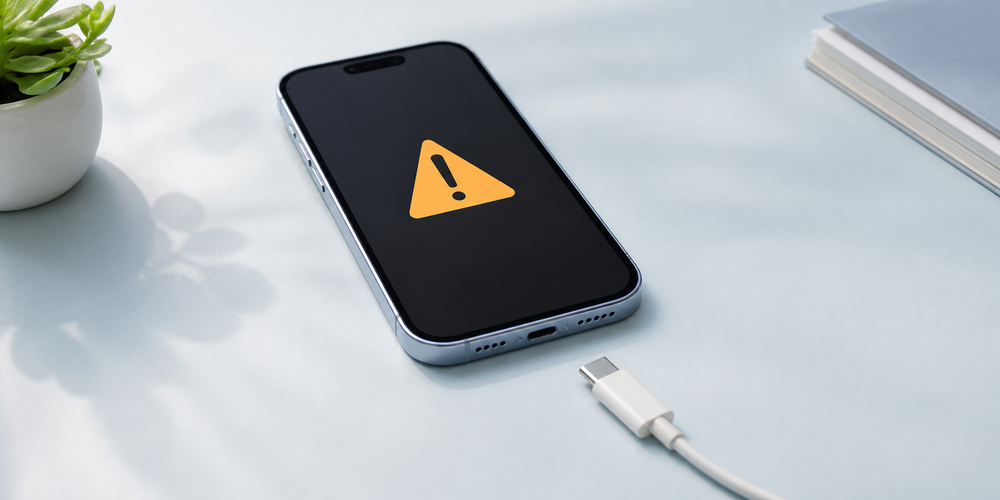
When an iPhone displays “This accessory may not be supported,” it has detected a connection it cannot use reliably. The phone may stop charging completely, charge on and off, or show the alert as soon as a cable is inserted. The message is a compatibility or connection warning, not proof that the battery itself has failed.
Apple identifies three broad triggers: a damaged accessory, an accessory the device does not support, or a dirty or damaged connector. That is why the quickest diagnosis starts with the cable, power adapter, and charging port before moving to software or internal hardware.
A frayed cable, bent plug, loose connector, or worn internal wire can interrupt the data and power checks that occur when charging begins. Lightning accessories that are counterfeit or uncertified are also more likely to fit poorly, overheat, stop syncing, or fail to charge. For USB-C iPhones, use a reputable cable that follows USB-C standards and supports the power your charger can provide.
The same compatibility checks apply when charging away from a wall outlet. A dependable USB-C power bank should pair a standards-compliant output with a cable in good condition; high capacity alone cannot correct a damaged connector.

Pocket lint can compact at the back of a Lightning or USB-C port and prevent the plug from seating fully. Moisture, corrosion, or bent contacts can produce the same warning. A connector that feels loose or only works at one angle points more strongly to physical wear than to an iOS setting.
The cable is only one part of the charging path. A failing wall adapter, damaged USB port, unstable car outlet, or extra adapter between the iPhone and charger can break the connection. Connecting the cable directly to a known-good charger helps remove these variables.
An iOS glitch can occasionally prevent the phone from recognizing a working accessory, especially if the problem began after a crash or update. Less commonly, damage inside the charging assembly or another internal component needs professional diagnosis. If the alert appears while no accessory is attached, Apple recommends service rather than repeated cable swapping.
Work through these steps in order. Stop if you find heat, swelling, exposed wires, liquid, a burned smell, or a connector that has melted or changed color.
Disconnect and reconnect. Remove the cable, wait a few seconds, and insert it firmly. Remove any extension, hub, or adapter and connect directly to the charger when possible.
Inspect every part. Check both cable ends, the wall adapter, and the iPhone port for bends, cracks, discoloration, looseness, or debris. Do not continue using visibly damaged equipment.
Try a known-good cable and charger. Change one component at a time. This shows whether the cable, adapter, outlet, or phone is causing the warning instead of replacing everything at once.
Clean only what is safe to reach. Power off the iPhone and gently brush away visible surface debris with a clean, dry, soft, non-metal brush. Do not insert metal tools, add liquid, or force material deeper into the port. Seek service if debris is compacted or contacts look damaged.
Restart the iPhone. A normal restart can clear a temporary accessory-recognition error. Reconnect the charger only after the phone has started again.
Update iOS. Open Settings > General > Software Update and install the latest version available for your device. Apple notes that some accessories require a current iOS version.
Confirm compatibility. Check that the accessory supports your iPhone model. For Lightning products, look for the Made for iPhone or MFi badge and buy from a reliable seller; for USB-C products, use reputable standards-compliant accessories.
Arrange repair if the warning remains. Service is appropriate when several known-good accessories fail, the port is loose or damaged, charging cuts out with movement, or the alert appears with nothing connected.
When replacing more than one worn part, choosing coordinated RORRY charging solutions can make it easier to keep the charger, cable type, and portable backup matched to the devices you actually carry.

A simple swap test is more useful than guessing. Keep the outlet and iPhone the same, then change only the cable. If the error disappears, the first cable is the likely cause. If it remains, restore the original cable and change only the adapter. Finally, test the same charger on another compatible device.
|
What you observe |
Likely area |
Best next step |
|
One cable fails; another works |
Cable or connector |
Replace the failed cable |
|
Several cables fail on one adapter |
Power adapter or its USB port |
Test a known-good adapter |
|
Several known-good setups fail on one iPhone |
iPhone port, software, or hardware |
Restart, update, then seek service |
|
Charging stops when the plug moves |
Loose cable end or worn port |
Stop flexing it; inspect and service |
|
Alert appears with nothing connected |
Port contamination or internal fault |
Power off and arrange service |
If the charging symbol appears but the battery percentage still does not rise, the cause may be different from an unsupported-accessory warning. A dirty port, weak cable, low-power adapter, heat, or battery condition can also explain why an iPhone says it is charging but is not.
Replace the accessory immediately if its insulation is split, the plug is bent, the connector is loose, or charging produces unusual heat or odor. A cable that works only when twisted is already failing; continuing to flex it can worsen the damage and make diagnosis harder.
Choose repair when the same warning appears with multiple trusted cables and adapters, when the port looks damaged, or when the plug no longer seats securely. Back up the iPhone before service if it can still be used normally. Do not attempt to bypass the warning with unverified adapters or connection tricks, because they do not repair the failed part.
If the phone and port test normally but your old portable charger or cable is the problem, the RORRY CharmGo D2 10000mAh combines a 10,000mAh battery, built-in charging connections, 20W output, and Apple Watch charging support. Match the built-in connector to your iPhone model before purchase.

Store cables loosely instead of wrapping them tightly around an adapter. Pull from the plug rather than the cable, keep connectors dry, and replace accessories once the plug loosens or the outer jacket begins to split. A small case or cable pocket can also stop metal objects and debris from reaching the connectors in a bag.
Before buying, confirm the connector type, device compatibility, and seller. Lightning users should look for Apple’s MFi identification, while USB-C users should choose reputable, standards-compliant cables rated for the required power. Keep iOS updated and inspect the charging port occasionally, but avoid routine digging or aggressive cleaning.
There is no safe setting that permanently overrides an unsupported-accessory warning. Avoid adapters or software tricks that bypass compatibility checks. Replace the accessory with one designed for your iPhone, or have the port inspected if compatible accessories also trigger the alert.
Yes, but an iPhone that no longer receives current iOS or security updates may gradually lose app and accessory compatibility. This is different from a single “accessory not supported” alert, which usually points to the connected accessory, charging port, or connection.
It usually means the Bluetooth device is incompatible, has not entered pairing mode correctly, is already connected elsewhere, or needs a firmware update. Forget the device under Settings > Bluetooth, restart both devices, and pair them again. This is separate from a wired charging-port warning.
Force-restart the iPhone using the button sequence for your model. On iPhone 8 and later, quickly press Volume Up, quickly press Volume Down, then hold the Side button until the Apple logo appears. Disconnect the accessory first and reconnect it after the phone restarts.
Use a working MFi-certified Lightning cable and adapter, inspect the Lightning port for damage or compacted debris, restart the phone, and install the newest iOS version available for that model. If several compatible accessories fail, the older port or charging hardware may need repair.
The “accessory not supported” warning usually comes from a damaged or incompatible cable, a problem with the adapter, debris or damage in the charging port, or a temporary iOS fault. Reconnect directly, inspect the equipment, swap one component at a time, restart, and update iOS. If several known-good accessories fail or the alert appears with nothing connected, stop troubleshooting and arrange service.


Share:
RORRY Portable Charger Comparison Guide