


- by kehuiyi
Liquid Detected in iPhone Connector? Safe Fixes
- by kehuiyi
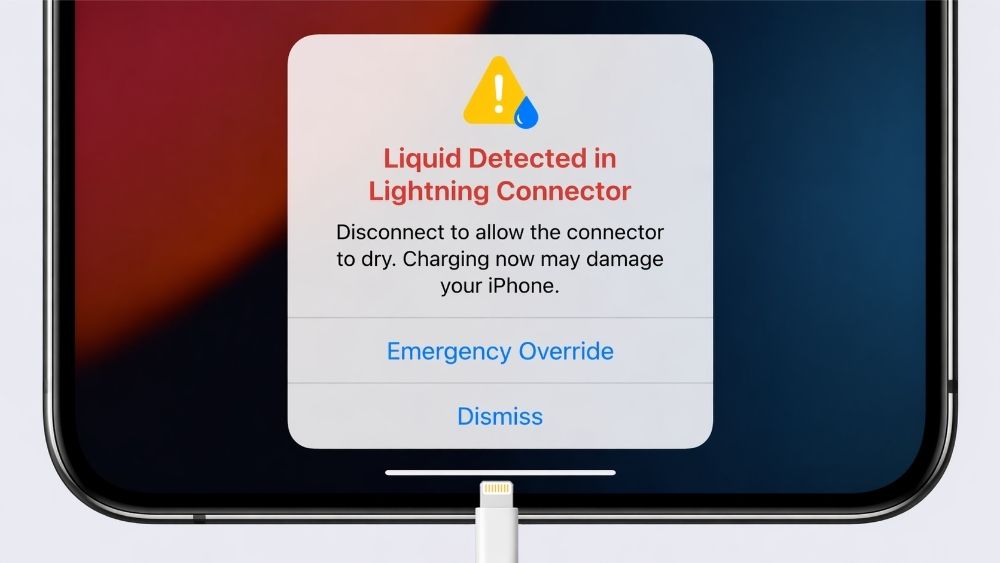
If your iPhone shows a "Liquid Detected" or "Charging Not Available" alert, unplug the cable immediately. Hold the phone with the connector facing down, tap it gently against your hand, and leave it in a dry area with airflow for at least 30 minutes. If the alert returns, continue drying it for up to 24 hours. Do not use heat, compressed air, rice, or any object inside the port. This guide explains how to clear the warning safely, keep the iPhone powered while it dries, and handle an alert that will not go away.
On iPhone XS, iPhone XS Max, iPhone XR, and later models, iOS can detect liquid in the Lightning or USB-C connector, on the cable end, or inside a connected accessory. Wired charging and accessory use are temporarily blocked to reduce the risk of corrosion and permanent connector damage.
The wording varies by connector and activity. A Lightning iPhone may show "Charging Not Available" or "Liquid Detected in Lightning Connector." A USB-C iPhone may show "Liquid Detected in USB-C Connector" or a shorter "Liquid Detected" alert. The required response is the same: disconnect the cable and allow every connector to dry.
A warning that appears only with one dry cable or accessory may indicate damaged equipment rather than moisture in the phone. If the iPhone also charges unreliably with other known-working cables, check the steps for an iPhone charging port not working before arranging service.
Unplug the cable from the iPhone, then disconnect its other end from the power adapter or accessory. Do not reconnect it until the iPhone connector, both cable ends, and the accessory are dry.
Hold the iPhone so the Lightning or USB-C connector points downward. Tap the phone gently against your hand to help excess liquid leave the opening. Do not shake the phone forcefully, blow into the connector, or push cloth, paper, a toothpick, or any other object inside.
Place the iPhone in a dry, well-ventilated area at room temperature. A fan supplying cool airflow can help, but do not use a hair dryer, heater, compressed air, or another external heat source. Do not put the iPhone in rice because small particles can enter and damage the connector.
After at least 30 minutes, reconnect a dry cable and try charging. If the alert appears again, disconnect it. Moisture may still be trapped in the connector or beneath the cable pins, so continue drying before testing again.

You can use wireless charging while the Lightning or USB-C connector dries, provided the back of the iPhone is completely dry. Wipe the exterior with a soft, lint-free cloth before placing it on a Qi-certified charger. Do not place a wet phone on a charging pad.
For a desk or bedside setup, a wireless charger avoids the damp connector entirely. Charging speed depends on the iPhone model, charging standard, alignment, adapter, and temperature, so the article should not promise one fixed MagSafe wattage for every model.
The RORRY M4/M5 3-in-1 Charging Station can charge a compatible iPhone wirelessly while also providing dedicated charging areas for an Apple Watch and AirPods. Its detachable power bank also gives you a wireless option away from the desk, which is useful while the phone connector remains unavailable.

Emergency Override should be reserved for a genuine emergency. It forces wired charging even though liquid may still be present, which can corrode the connector pins and cause permanent charging or accessory problems. Wireless charging is the safer temporary option.
|
What Happens |
What to Do |
|
First liquid-detection alert |
Disconnect everything and wait at least 30 minutes before the first wired charging test. |
|
The alert appears again |
Disconnect the cable and continue drying. Full drying can take up to 24 hours. |
|
The alert is gone |
Reconnect only when the phone, cable ends, and accessory are dry. |
|
The phone is dry but still will not charge |
Reconnect the cable, power adapter, and wall outlet. Test another known-working cable if needed. |
Thirty minutes is the earliest recommended time to test the connection, not a promise that the connector is already dry. If the alert returns, stop and wait longer. Repeatedly reconnecting the cable does not speed up drying and increases the chance of corrosion if moisture remains.

If the alert returns during the first 24 hours, continue drying the iPhone, cable, and accessory. Moisture can remain beneath the cable pins even when the outside looks dry. High humidity or condensation can also trigger the sensor.
If only one cable or accessory triggers the alert after everything is dry, stop using that item and contact its manufacturer. The connector or cable may be damaged. If the warning appears with every known-working Apple or compliant cable after a full drying period, the iPhone may need service.
Visible corrosion, a loose connector, repeated disconnections, or charging that works only at a certain angle also points to a hardware problem. Do not scrape the pins or continue forcing the cable into the port.
Dry your hands before connecting a cable, keep the phone away from rain and workout moisture, and check that both cable ends are dry before charging. A case with connector protection can help in wet environments, but the cover itself must also be clean and dry.
Replace damaged cables instead of continuing to reconnect them. Keep charging equipment away from sinks, drinks, and humid bathroom surfaces, and allow a cold phone to reach room temperature before charging if condensation has formed.
Using wireless charging for routine desk or bedside charging also reduces how often the physical connector is exposed. RORRY offers wireless and multi-device charging options for users who want a practical backup when a wired connector is temporarily unavailable.
Yes, but only in a genuine emergency. Emergency Override bypasses the liquid protection and allows wired charging while moisture may still be present. This can corrode the connector pins and cause permanent damage, so use wireless charging instead whenever possible.
No. The warning means liquid was detected in the phone connector, cable, or accessory. It can be triggered by a splash, condensation, or humidity and often clears after proper drying. Persistent charging, speaker, display, or camera problems may indicate broader liquid damage.
The cable end may still contain moisture, or the cable may be damaged. Test a dry, known-working cable. If only one accessory repeatedly triggers the alert, stop using it and contact its manufacturer.
Wait at least 30 minutes before the first test. If the alert returns, disconnect the cable and continue drying for up to 24 hours. Resume normal wired charging only when the phone, cable ends, and accessory are dry and the alert no longer appears.
A liquid-detection alert is a safety response, not automatic proof that the iPhone is damaged. Disconnect the cable, tap the iPhone gently with the connector facing down, and leave it in a dry area with airflow. Test again after at least 30 minutes, but allow up to 24 hours if the alert returns. Never use heat, compressed air, rice, or objects inside the connector. Use wireless charging only after confirming that the back of the phone is dry, and arrange service if every dry, known-working cable continues to trigger the warning.


Share:
iPhone Charging Port Not Working? Here's How to Fix It
Which Samsung Phones Have Wireless Charging in 2026?